SVG → DST converter
Convert SVG to DST embroidery files
Turn your SVG picture into a ready-to-stitch DST file for Tajima, Ricoma, or Happy machines. StitchMyPic digitizes it the way a person would, with satin borders, tatami fills, underlay and an optimized stitch order, and shows you every stitch before you download.
- Free stitch preview
- 1 credit per download
- PES, DST, JEF and EXP in one ZIP
Free preview · no account needed
Drop your SVG – see it as DST stitches
No account needed for the preview: your picture is digitized right here in your browser. You only use a credit when you download.
Machine files:.PES.DST.JEF.EXP
What a picture looks like once it's stitched
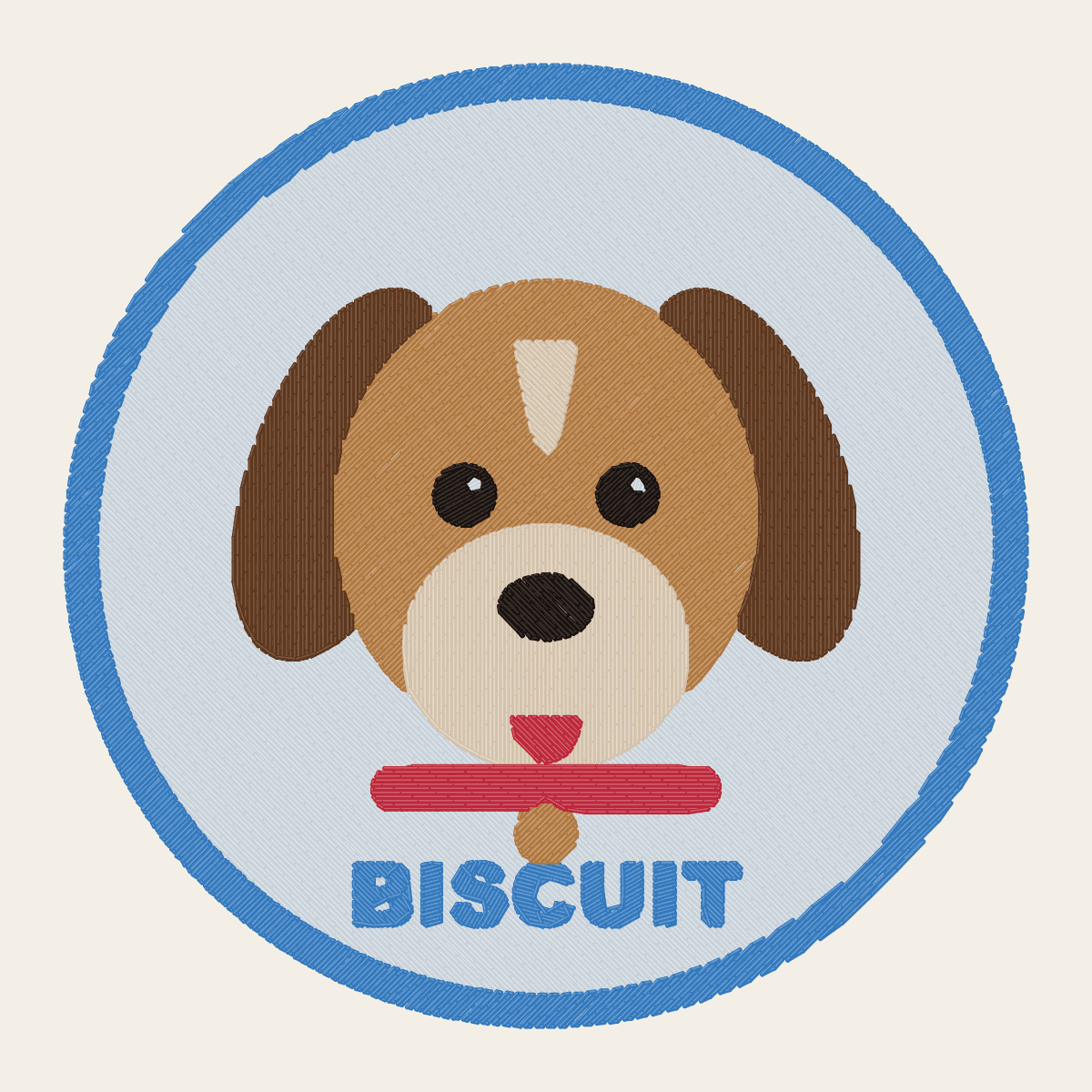
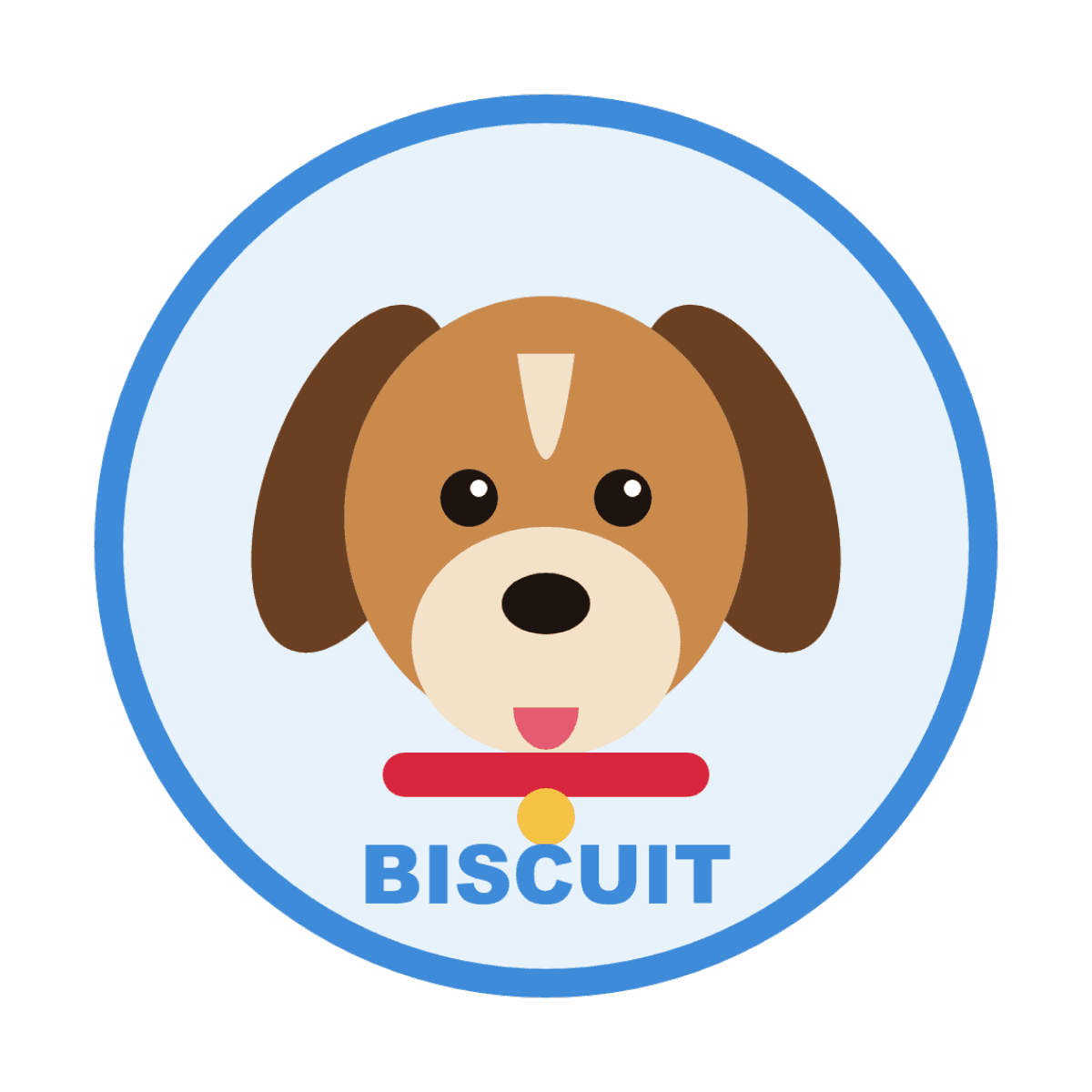
Drag the handle to compare the original artwork with the stitch simulation StitchMyPic shows you before you download.
Round pet badge of a brown puppy named Biscuit wearing a red collar
How to convert SVG to DST
- 1Drop your SVG into the tool above. It's rendered at full resolution before digitizing.
- 2Set the stitched width in millimetres or inches for your hoop, then check the stitch preview, stitch count and sewing time.
- 3Note the colour order: DST records colour stops but not colours, so set needles or threads from the production sheet in the ZIP.
- 4Download the ZIP (PES, DST, JEF and EXP), unzip it and copy the DST file to your machine.
Preparing your SVG for embroidery
SVG vector logos are ideal for embroidery: they're made of exact shapes and flat colours, which is exactly what thread needs. StitchMyPic renders your SVG at the size you stitch it before digitizing, so curves and corners stay crisp however large the design is. Gradients, shadows and transparency effects can't be sewn as such, so they're flattened into solid colour areas.
- Convert text to outlines (paths) before exporting, so the lettering doesn't depend on installed fonts.
- Replace gradients with two or three flat colours.
- Delete hidden layers and details smaller than about 2–3 mm at the final size.
What you get in the DST file
DST comes from Tajima and is the common language of commercial embroidery: Ricoma, Happy, Barudan, SWF, ZSK and most multi-needle machines read it. It records needle positions and colour stops but no thread colours, and trims are written as short jump sequences that the machine is set to cut on. A single move can't exceed 12.1 mm, so longer moves are split into several jumps automatically. Your download includes a production sheet that lists each colour stop with the nearest Brother and Janome thread.
| Created by | Tajima |
|---|---|
| Read by | Tajima, Ricoma, Happy, Barudan, SWF, ZSK and most multi-needle machines; nearly every embroidery program |
| Thread colours stored | No, only colour stops |
| Stitch precision | 0.1 mm |
| Longest single move | 12.1 mm in each direction; longer moves become several jumps |
| Also in the file | 512-byte text header: design label, stitch count, colour-change count and extents |
SVG to DST: common questions
Is the SVG to DST converter free?
The preview is free and needs no account: drop your SVG above and you see the stitches, stitch count and sewing time. Downloading uses one credit, from $2.58 per design, and new accounts get one free credit. The ZIP contains DST plus the other three formats.
Do I need to convert my SVG to PNG first?
No. Upload the SVG as it is: it's rendered at high resolution before digitizing, so the edges are as clean as they can be. Convert any text to outlines first, because a font that isn't embedded in the file may be replaced by another when it's opened.
Why does my DST show the wrong colours on the machine?
DST only records that a colour change happens, not which colour. Home machines show a default colour for each block, and commercial machines expect you to assign needles. Use the production sheet in your download to load the right thread for every stop.
My machine sews long jump threads instead of trimming. Why?
DST has no dedicated trim command: a trim is written as a short series of jumps, and the machine is set to cut when it sees them. If that setting doesn't match the file, it sews a jump instead of cutting. Check the trim (jump code) setting on the control panel.
How big should I stitch my design?
Most logos and badges look best 70–120 mm wide. Keep capital letters at least 6 mm tall and lines at least 1 mm wide at the final size, and leave 5–10 mm between the design and the edge of your hoop's sewing field. The editor warns you if the design doesn't fit.