
My threads & my machine
Match embroidery colours to the threads you already own
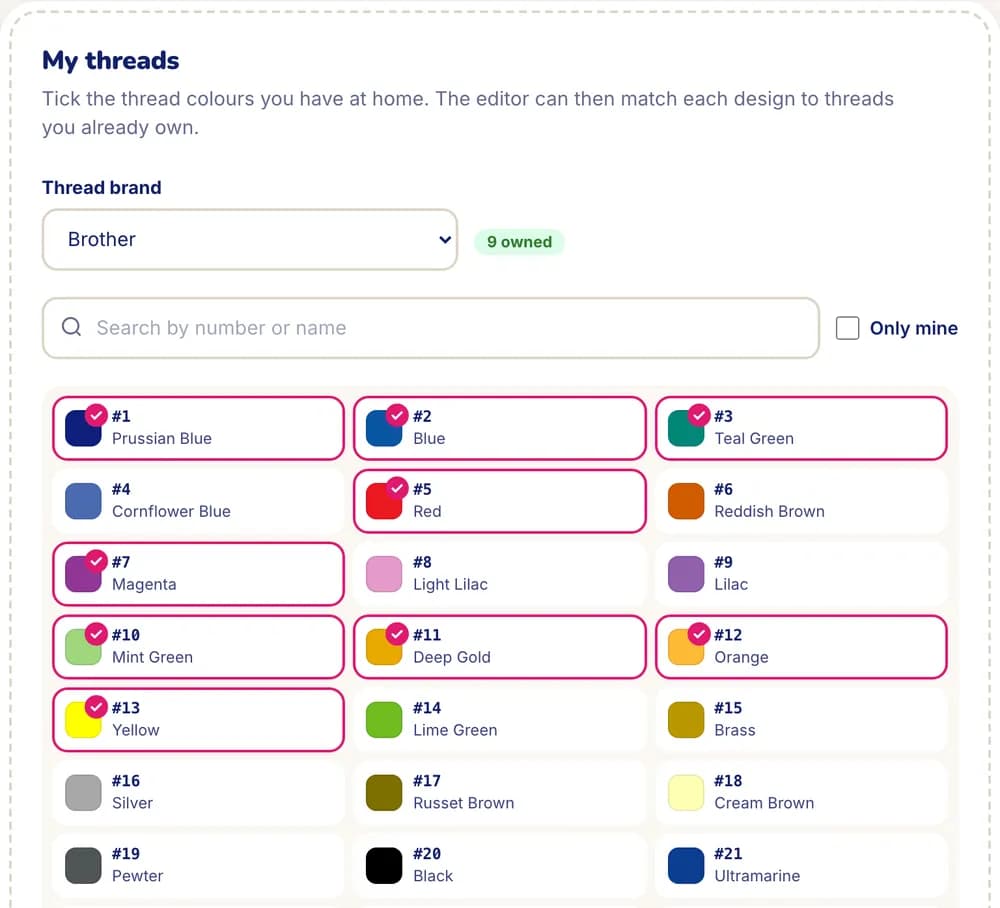
In StitchMyPic you tick the thread colours you own in “My threads”, from 75 thread charts such as Madeira, Isacord, Robison-Anton, Sulky and Brother. In the editor, “Prefer threads I own” then swaps each colour of a design for the closest thread in your stash, so you can sew it without buying new spools.
A picture may have 40 shades of red; your drawer has three. Matching each colour to a real thread chart is useful, but matching it to the threads on your shelf is what lets you sew tonight. Your machine profile does the same for the rest: hoop, file format and speed are set once and used for every new design.
How it works
- 1
Choose your thread brand
Pick one of 75 charts in your account (Madeira Polyneon and Rayon, Isacord, Robison-Anton, Sulky, Brother, Janome, Gunold, Floriani, DMC and more). New designs show thread numbers from it.
- 2
Tick the threads you own
Search by number or name and tick each colour, or paste a list of thread numbers separated by commas, spaces or new lines.
- 3
Turn on “Prefer threads I own”
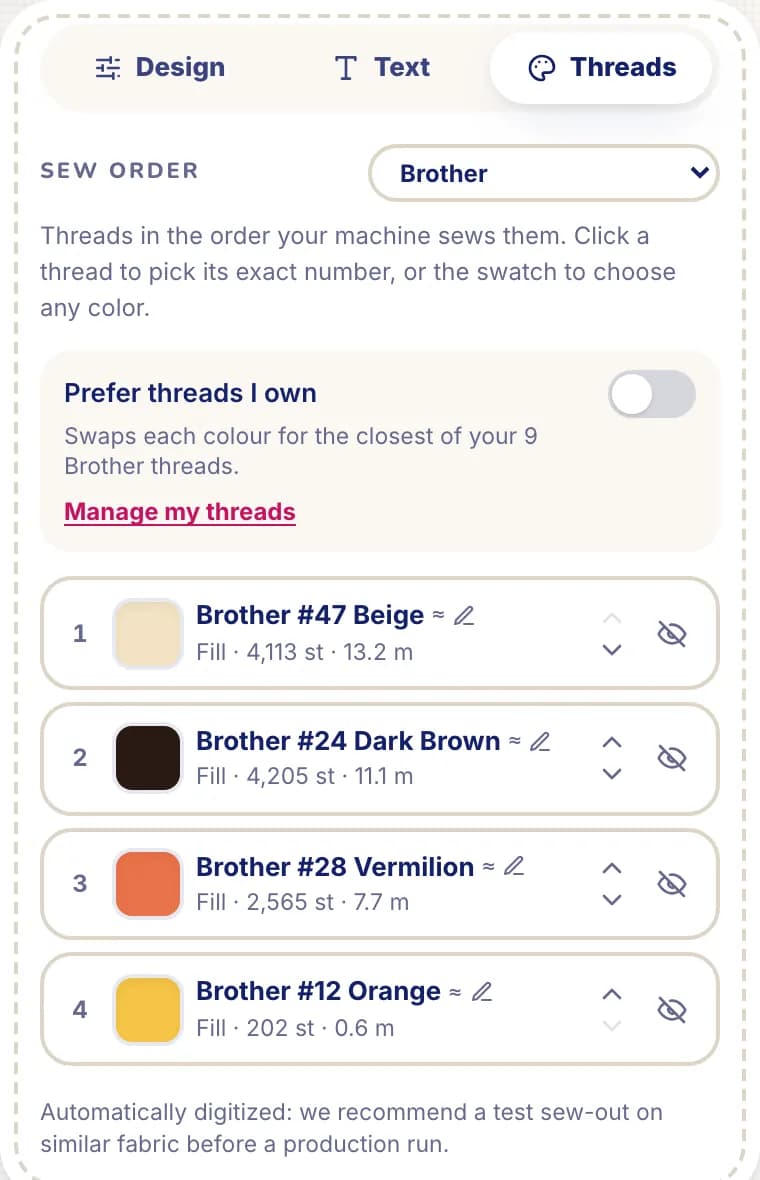
In the editor, each colour of the design is swapped for the closest of your threads in that brand. Turn it off to put the previous colours back.
- 4
Sew with what's on the shelf
The thread list shows each colour's number and marks the ones in your threads, so you know exactly which spools to pull.
Why it helps
No shopping before sewing
Designs come out in the colours you can sew right now, not in shades you would have to order.
Real thread numbers
Every colour maps to a numbered thread from a real chart, so a repeat order uses the same spools.
Set your machine once
Your largest hoop, preferred file format and machine speed are applied to every new design and download.
Quick to set up
Paste the numbers from your thread box or a supplier invoice instead of ticking hundreds of colours one by one.
Your machine profile
Next to your threads, “My machine” in your account stores:
- Machine brand and model, as written on your machine.
- Largest hoop: new designs start in it, and the editor warns when a design is too big (or offers to split it).
- Preferred file format, with a suggestion for your brand (PES for Brother and Baby Lock, JEF for Janome, EXP for Bernina, DST for most commercial machines): downloads point to it.
- Machine speed, used for the sew time estimates.
- Thread brand, used for thread numbers and for matching to your threads.
Not sure which format your machine reads? See the machines and file formats pages.
Good to know: the limits
- Matching is by colour, as it looks on screen. Thread charts are close to the real spools but dye lots and screens vary: check against the spool when it matters.
- Matching works within one brand at a time, the brand selected in the editor.
- If your stash has no thread close to a colour, the closest one may still be quite different. You can change any colour by hand.
- The inventory holds up to 3,000 threads.
Questions and answers
Which thread brands are available?
75 charts, including Madeira (Polyneon, Rayon, Burmilana, Matt), Isacord, Robison-Anton, Sulky, Brother, Janome, Gunold, Floriani, Mettler, Marathon, Coats, Gütermann, DMC, Anchor, Simthread and Wonderfil.
Can I mix brands?
You can keep threads of several brands in your inventory, but matching uses the brand selected in the editor. Switch the brand to match against another part of your stash.
How is the closest thread chosen?
Each design colour is compared with your owned threads of that brand using the CIEDE2000 colour difference, a standard measure of how different two colours look, and the nearest one is used. Two design colours can end up on the same spool if your stash is small.
Can I still pick a different thread for one colour?
Yes. Click any colour in the editor to choose another thread from the chart, owned or not.
Do I need an account?
Yes, a free account: your threads and machine profile are saved with it and used on every device you sign in on.
Related features
All featuresSplit large designs
Sew a design bigger than your hoop in several hoopings, with alignment crosses and a guide.
Sew-out simulator
Watch the design embroider stitch by stitch, in the order your machine will sew it.
“Will it embroider well?” check
A verdict on your picture with one-click fixes for size, colours and background.