
Placement template
Printable 1:1 embroidery placement template
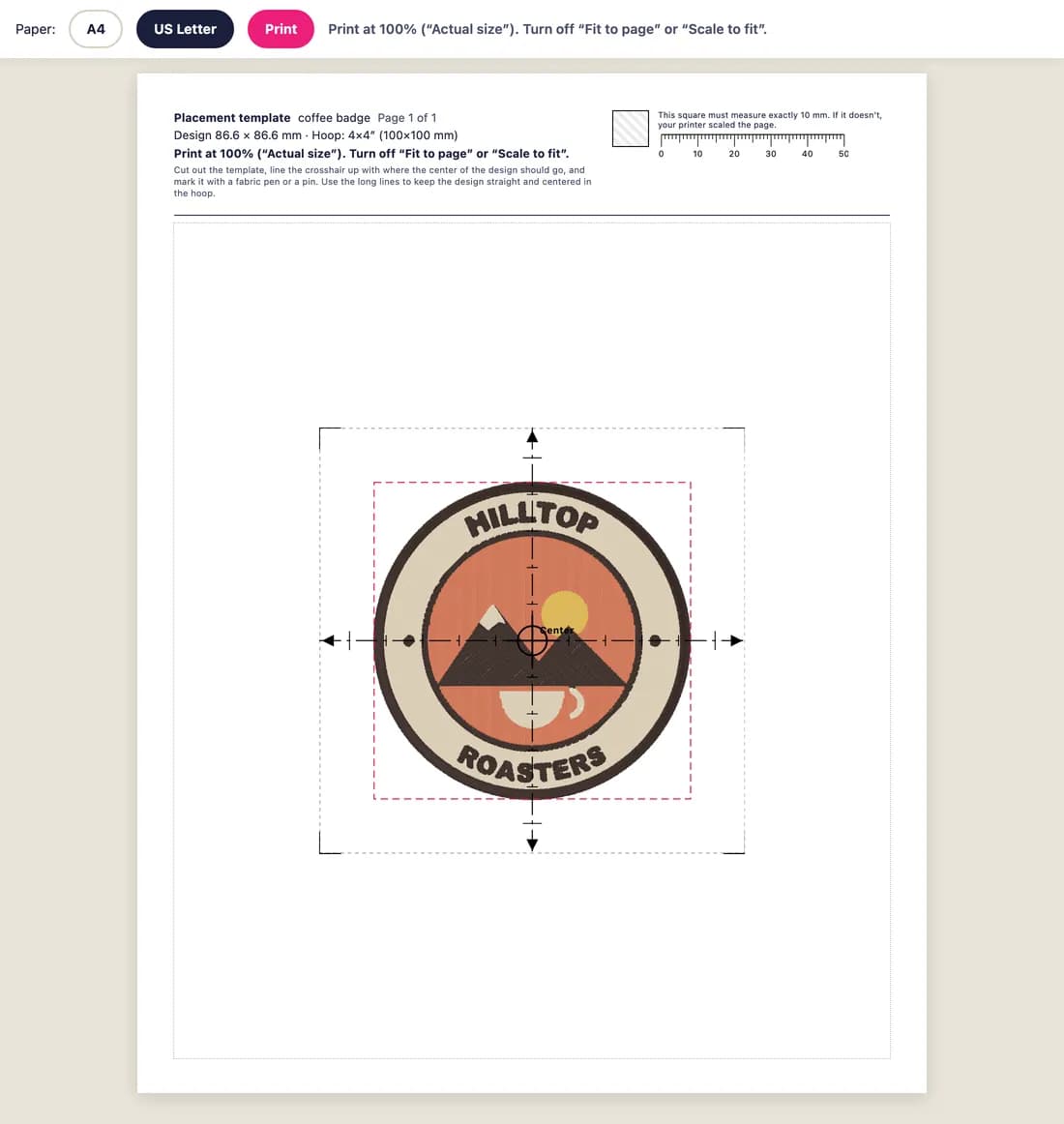
StitchMyPic prints a placement template of your embroidery design at exactly 1:1 scale on A4 or US Letter paper, with a centre crosshair, the two centring axes, a ruler and a 10 mm (0.39 in) calibration square. Lay it on the garment, mark the centre with a pin or a fabric pen, and hoop the design straight and in the right spot.
Most placement mistakes happen before the machine starts: a chest logo a little too low, a design hooped at a slight angle, a name that ends up off-centre on a towel. A paper template at real size lets you try the design on the actual garment, move it around, and mark the centre before you hoop.
How it works
- 1
Open the print template
In the editor, choose “Print 1:1 placement template”. The design is printed exactly at the size you set, from its stitch preview.
- 2
Print at actual size
Pick A4 or US Letter and print at 100 % (“Actual size”). Turn off “Fit to page” or “Scale to fit”, which would shrink it.
- 3
Measure the 10 mm (0.39 in) square
Every page has a calibration square. If it doesn't measure exactly 10 mm, your printer scaled the page: fix the print settings and print again.
- 4
Mark the garment
Cut out the template, line the crosshair up with where the centre of the design should go, and mark it with a fabric pen or a pin. Use the long lines to keep the design straight in the hoop.
Why it helps
See the real size on the real garment
Hold the template against the shirt, bag or towel and judge the size and position by eye, the way your customer will see it.
Straight and centred hooping
The crosshair and the two axes give you a centre point and a vertical line to match with your hoop's markings.
Large designs on several pages
A design bigger than one sheet is tiled across several pages with ⊕ overlap marks. Overlap the pages so the marks match and tape them together.
Works with any machine
It's paper, so it doesn't matter which machine or format you use. No extra software and no download needed.
Tips for marking the position
- Lay the garment flat and unstretched. Knits move when you pull them, so mark them relaxed.
- For a left chest logo, try the template on the garment rather than relying on a fixed measurement: neck openings and shirt sizes vary a lot.
- Mark the centre and at least one point on the vertical axis. Two marks keep the design from turning when you hoop.
- Use a removable marker or pins, and test the marker on a hidden part of the fabric first.
- On a cap, line the vertical axis up with the centre seam of the front panel.
- For designs sewn in several hoopings, use the placement guide included with split designs: it shows every hooping and its offset from the centre.
Good to know: the limits
- It depends on your printer: always check the 10 mm square before trusting the template.
- It's a guide for placement, not a transfer or a stencil: the stitches still come from your machine file.
- The template is printed from the editor, so you need a free account (no credit needed).
- Paper is flat: on curved items such as caps, it shows the size and centre, not how the design wraps.
Questions and answers
Why did my template print smaller than the design?
Your print dialog scaled the page. Choose 100 % or “Actual size” and turn off “Fit to page” or “Scale to fit”. The 10 mm square tells you at a glance whether the scale is right.
Does printing the template cost a credit?
No. The template is printed from the preview in your browser, before you download anything. Credits are only used for the embroidery file.
My design is bigger than a sheet of paper. What happens?
The template is tiled across several pages. Each page shows its tile number and the overlap edge, so you can lay the pages side by side, match the ⊕ marks and tape them together.
A4 or US Letter?
Both are available. Pick the paper loaded in your printer; the layout adapts so the design stays at its exact size.
Is there a template for designs split into several hoopings?
Yes. When you split a large design, the ZIP includes a printable placement guide with the hooping layout, the sewing order and the centre offset of each hooping.
Related features
All featuresGarment mockup
Your stitched design on a t-shirt, hoodie, cap, tote or jacket at true scale, exported as PNG.
Split large designs
Sew a design bigger than your hoop in several hoopings, with alignment crosses and a guide.
Sew-out simulator
Watch the design embroider stitch by stitch, in the order your machine will sew it.