Which pictures make good embroidery?
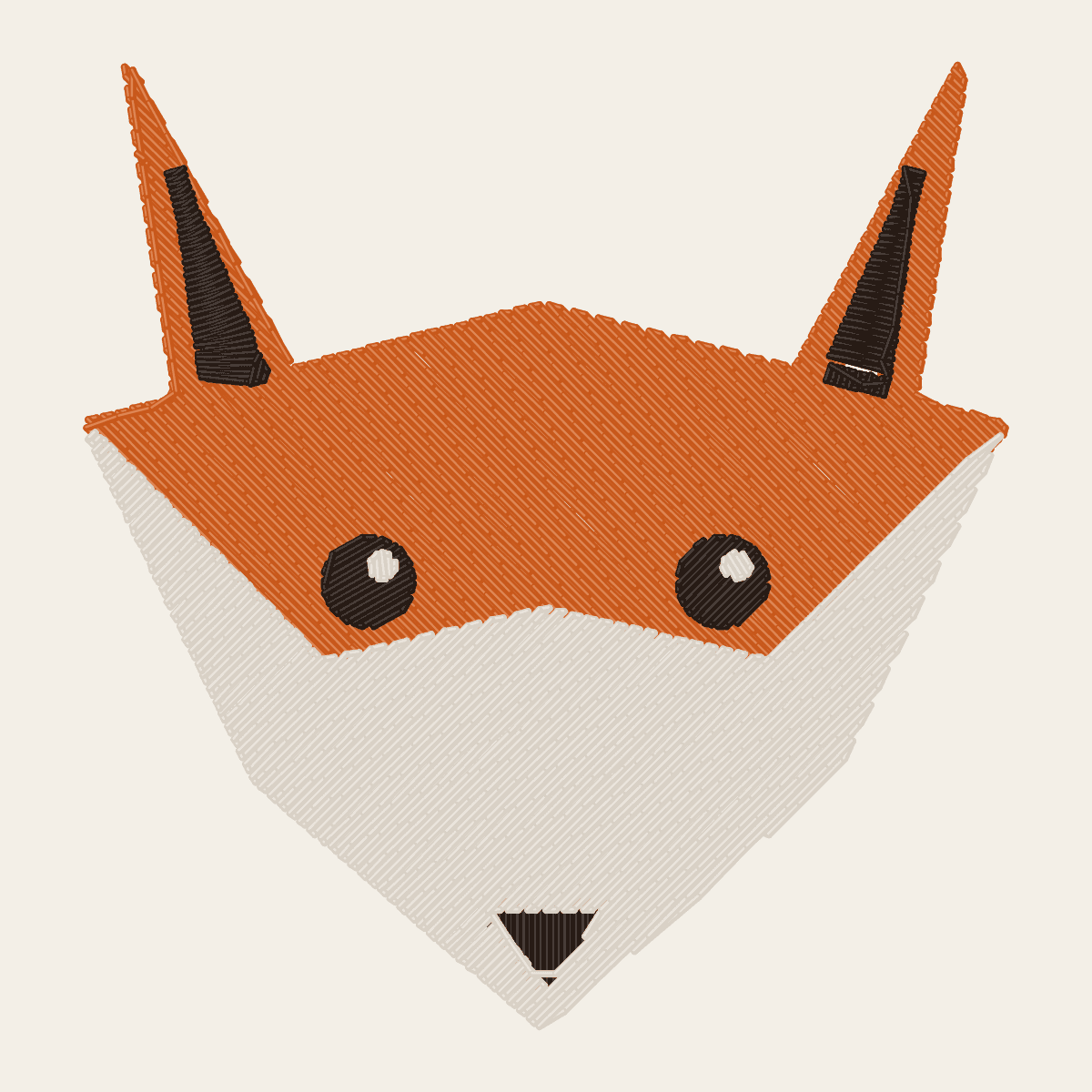
Pictures with a few flat colours, clear edges and shapes of a reasonable size make the best embroidery: logos, badges, cartoons, clipart and bold lettering. Photos, watercolours and images with gradients or shadows need simplifying first.
Embroidery builds a picture from solid blocks of thread. Each block is one colour, and it has a minimum size below which it can't be sewn cleanly. So the pictures that work best already look like that: flat colours, clear edges, shapes of a reasonable size.
Pictures that usually stitch well:
- Logos and badges with a few flat colours.
- Cartoons, mascots and clipart with outlines.
- Lettering and monograms in bold fonts.
- Simple icons and silhouettes.
Pictures that need work first:
- Photos, especially faces and fur, because they are made of soft gradients.
- Watercolour, pencil and textured illustrations.
- Anything with glows, drop shadows or transparency effects.
- Busy scenes with lots of small elements.
That doesn't mean a photo can't become embroidery. It means it has to be simplified into a few flat colour areas, and the result will look like an illustration of the photo rather than the photo itself.
For the whole process, from choosing the picture to the test stitch-out, see how to turn a picture into an embroidery file.
How many pixels does a picture for embroidery need?
Think in pixels per millimetre of finished embroidery. Around 10 pixels per millimetre is comfortable, so a design sewn 100 mm wide wants a picture at least 1000 pixels across. Going much higher doesn't help, because thread can't reproduce detail finer than about 1 mm anyway.
Low resolution causes jagged, stair-stepped edges, and those become wobbly satin columns. Upscaling a 200-pixel logo doesn't fix this: the edges just become blurry, which is worse. Find a bigger original instead: the company website, a PDF of the brand guidelines, or the designer's source files.
File type matters too:
- SVG is ideal, because the shapes are exact at any size.
- PNG is next best: lossless, and it supports a transparent background.
- JPG and WEBP are fine if they are high quality, but compression leaves faint halos and blocky noise around edges that can become specks of stray colour. Prefer the PNG if you have both.
How many colours should the picture have?
Three to six thread colours suit most designs. Each colour is a separate thread, and on a single-needle machine a separate stop to re-thread. Beyond eight or ten the extra colours rarely improve the result but always add time and trims.
Watch out for colours you can't see. Smooth edges in a digital image are made of in-between shades (anti-aliasing), and a converter has to fold those back into the main colours. A good converter handles this, but it's another reason to start from clean, flat artwork.
Contrast matters more in thread than on screen. Two neighbouring colours with similar brightness, such as mid red and mid green, blur together at stitching distance. Strong light and dark contrast keeps shapes readable.
Finally, think about the fabric. A transparent PNG background means nothing is sewn there, and the garment colour becomes part of the design. On a black shirt you might skip black outlines entirely; on a white towel, leave out the white areas.
How small can details be?
At the final size, keep lines at least 1 mm wide, capital letters at least 6 mm tall, filled shapes at least 2–3 mm across and gaps at least 1 mm. Pile fabrics such as towels need more.
Measure details at the size you'll actually sew, not on your screen zoomed in. The practical limits for standard 40 wt thread:
- Lines: under about 1 mm wide, a line can only be a running stitch. If it should look solid, make it at least 1–1.5 mm.
- Text: capitals at least 6 mm (about 1/4 in) tall in a sans-serif font; thin and script fonts need more.
- Small shapes: a filled area smaller than about 2–3 mm across sews as a lump. Merge it or drop it.
- Gaps: spaces under about 1 mm between two shapes close up, because pull compensation widens both shapes.
- Textured fabric: on towels, fleece and knits, add a margin to all of the above, since the pile swallows fine detail.
A quick test: show the picture on screen at its real size (hold a ruler to the monitor) and look at it from arm's length. Whatever you can't make out there won't survive as thread.
How do you prepare a photo, pet or portrait?
Photos can work if you prepare them. The aim is to turn the photo into a bold, simplified image before conversion:
- Crop tightly around the subject. A face or a pet's head should fill the frame.
- Remove or plainly colour the background, so it doesn't eat into the colour count.
- Raise the contrast and brightness so the main features separate clearly.
- Reduce to 4–6 colours (a "posterize" filter in most photo editors) and look at the result: that's roughly what the embroidery will show.
- If the result looks muddy, consider a cartoon or traced version of the photo instead. Many pet portraits look best as a simple illustration.
Size matters with faces. Eyes, nose and mouth are small features, and at a stitched width under about 50 mm they tend to merge. Larger is easier: a 100 mm pet portrait keeps far more character than a 40 mm one.
A checklist before you upload
- Do you know the final stitched size and the hoop it has to fit? See the hoop size chart.
- Is the picture at least about 10 pixels per mm of that size (1000 px for 100 mm)?
- Is it SVG or PNG, or at least a high-quality JPG?
- Are there 6 colours or fewer, with clear contrast between neighbours?
- Are gradients, shadows and glows removed or flattened?
- Are all lines at least 1 mm and all capital letters at least 6 mm tall at the final size?
- Is the background transparent or a single flat colour you can drop?
If you can tick these, the conversion will be quick and the stitch-out clean. If not, it can still work, but expect to spend a little time adjusting.
How StitchMyPic handles your picture
StitchMyPic accepts PNG, JPG, WEBP and SVG. When you upload, it reduces the picture to the number of thread colours you choose, cleans up anti-aliased edges and specks, and then picks satin, fill or running stitch for each shape based on its width at the size you set. You can preview the stitches on different fabric colours and change the colour count, size or fabric type as often as you like; the preview is free.
The fabric setting also adapts the minimum detail: on towels, for instance, very fine details are dropped because they would vanish into the loops. When the preview looks right, download the ZIP with PES, DST, JEF and EXP for 1 credit (pricing).
Good starting points: PNG to PES, JPG to DST, SVG to JEF and WEBP to PES.
Questions about this topic
Can I use a photo from my phone?
Yes, but simplify it first: crop tightly, remove the background and raise the contrast. Phone photos have plenty of pixels; the challenge is the soft shading, which will be reduced to a few flat colours.
Is SVG better than PNG for embroidery?
Usually, yes. SVG shapes are exact at any size, so edges are perfectly clean. A large, sharp PNG is almost as good. Both are better than a compressed JPG.
How many colours should my picture have?
Three to six is a good range. More colours add thread changes and trims but rarely make the embroidery look better. Merge similar shades before uploading or choose a lower colour count in the converter.
Do I need to remove the background?
If the background shouldn't be sewn, yes: use a transparent PNG or a single flat background colour that you leave out. Otherwise the background becomes a large fill that adds thousands of stitches.
Sources
Manufacturer pages and documentation we checked the facts in this guide against: