
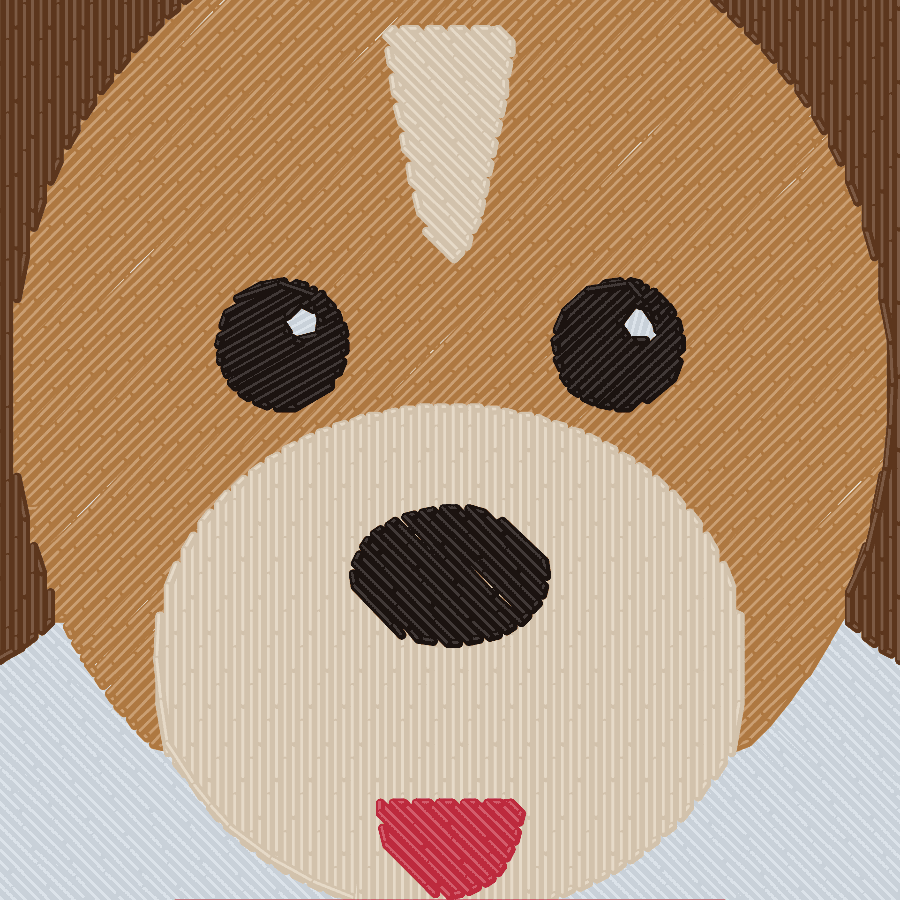
Can you turn any picture into an embroidery file?
Yes, but not by saving it in another format. An embroidery file is a list of stitches, so the picture has to be digitized: reduced to a few flat colours and clear shapes, and each shape turned into stitches at one fixed size. You can do this yourself in software, pay a digitizer, or use an automatic tool.
Renaming a JPG to .pes does not work: a machine format such as PES or DST contains needle movements, not pixels. Our format comparison explains what each format stores.
Whatever method you choose, the work follows the same seven steps:
- Choose the best version of the picture.
- Remove the background and crop.
- Reduce the colours.
- Choose the stitched size and the hoop.
- Convert the shapes into stitches.
- Check the stitch count and the small details.
- Sew a test on the real fabric.
Step 1: Which picture should you start from?
Start from the cleanest and largest version you have. A logo as SVG, or as a PNG exported from the original file, is ideal. A photo can work if the subject is large, sharp and clearly separated from the background. Aim for about 10 pixels per millimetre of stitched width: 1,000 pixels for a design 100 mm wide.
Logos, badges, cartoons, clipart and lettering convert well. Photos and watercolours need more preparation, because thread cannot reproduce soft shading.
Some practical tips:
- Ask for the original file. For a company or club logo, the website, the brand guidelines or the designer usually has an SVG or a large PNG.
- Do not upscale a small image. Enlarging a 200-pixel logo only makes the edges blurry. A blurry edge becomes a wavy satin column.
- Prefer PNG to JPG. JPG compression adds faint halos around edges, which can become small spots of an extra colour.
Our guide to the best images for embroidery goes into more detail.
Step 2: Remove the background and crop
Remove anything you do not want stitched, then crop tightly around the subject. A background that stays in the picture becomes a large fill: on a 100 × 100 mm design that can add several thousand stitches, make the fabric stiff and add a long sewing time.
There are two simple ways to do it:
- Transparent background. Most photo editors and many free online tools can remove a background and save a PNG with transparency. Nothing is stitched where the picture is transparent, so the fabric shows through.
- One flat background colour. If you cannot make it transparent, fill the background with a single plain colour that is clearly different from the subject. A converter can then leave that colour out.
For portraits of people and pets, crop so the face fills most of the picture.
Step 3: How many colours should the design have?
Most designs look best with three to six thread colours. Each colour is a separate thread: on a single-needle home machine it is a stop where you change the spool by hand, and on every machine it adds trims. Beyond eight to ten colours, the extra shades rarely improve the result.
To reduce the colours:
- Merge similar shades. Two blues that are almost the same will be sewn with the same thread anyway.
- Remove gradients, glows and shadows. Thread cannot fade from one colour to another. Replace a gradient with one or two flat tones.
- Keep strong contrast between neighbours. Two colours with similar brightness, such as a mid red next to a mid green, blur together when you look at the stitched piece.
- Use the fabric colour. If the garment is white, white parts of the picture can often stay unstitched.
For photos, a "posterize" filter in a photo editor shows roughly what four to six colours will look like.
Step 4: Choose the stitched size and the hoop
Decide the final size before you convert, because an embroidery file is made for one size. Enlarging or reducing a finished stitch file by more than about 10–20% spreads the stitches apart or packs them too tightly. The design must also fit inside the sewing field of your hoop, with a margin of 5–10 mm.
| Item | Typical design size | Common hoop |
|---|---|---|
| Left chest logo (shirt, polo) | 75–100 mm (3–4 in) wide | 4×4 in (100 × 100 mm) |
| Cap front | About 50–60 mm tall, up to about 110–130 mm wide | Cap frame |
| T-shirt front or tote bag | 150–250 mm wide | 6×10, 8×8 or 8×12 in |
| Cushion or quilt block | About 150–200 mm square | 8×8 in (200 × 200 mm) |
| Jacket back | 250–300 mm wide | Large home hoop or a commercial frame |
At the chosen size, check the smallest details. Capital letters should be at least 6 mm (about 1/4 in) tall, lines at least 1 mm wide, and gaps between shapes at least 1 mm. If a tagline or a fine outline is too small, make it bigger or remove it. The hoop size chart lists the sewing fields of every major brand.
Step 5: Convert the shapes into stitches
Converting means choosing a stitch type for every shape, adding the layers that keep the fabric stable and planning the sew order, by hand or automatically.
The stitch type depends on the width of each shape at the final size:
- Under about 1 mm: running stitch. A single line of stitches, or a triple "bean" stitch for a bolder line.
- About 1–7 mm: satin. The needle goes from one edge to the other, which gives the shiny, raised look of lettering and borders.
- Wider than about 7 mm: fill (tatami). Rows of short stitches, usually with a row spacing around 0.4 mm.
Three settings protect the result:
- Underlay: a light layer sewn first, which holds the fabric and supports the top stitches.
- Pull compensation: shapes are made slightly wider, because thread tension pulls the fabric inward.
- Sew order: background first, details on top, one colour at a time, with as few jumps and trims as possible.
Finally, save the file in your machine's format: PES for Brother and Baby Lock, JEF for Janome, DST for commercial machines and EXP for Bernina. Our logo digitizing guide explains these settings with more numbers.
Step 6: Check the stitch count and the details
Before you sew, look at the stitch preview and the numbers. The stitch count tells you whether the design is reasonable for its size: a fill with 0.4 mm row spacing puts about 70 stitches in each square centimetre, so a fully filled 100 × 100 mm design has around 7,000 stitches before underlay. As an example, our coffee badge sample is 96 × 96 mm with four colours and about 12,300 stitches.
Check these points:
- Sewing time: divide the stitch count by your machine's speed in stitches per minute, which is listed in its specifications, and add time for each colour change. For example, 12,000 stitches at 600 stitches per minute take about 20 minutes.
- Small text and thin lines: zoom in on the preview at the real size. What you cannot read on screen will not be readable in thread.
- Fit in the hoop: the machine refuses a design that is even 1 mm too large for the selected hoop.
Step 7: Sew a test before the real piece
Sew the first test on the same fabric, with the same stabilizer, needle and thread as the final piece. A design that looks perfect on screen can still pucker on a stretchy T-shirt or sink into a towel.
Puckering usually means the stabilizer is too light or the design too dense; gaps between a fill and its outline mean the fabric moved; letters that close up are too small for their stroke width. Our stabilizer guide and the test section of the logo digitizing guide explain the fixes. If your tool lets you re-export, change the setting and export again rather than editing the stitches on the machine.
Which method should you use to convert a picture?
For a clean logo or a flat drawing you need quickly, an automatic tool is usually enough. For complex artwork, very small text or a large production run, hire a digitizer. If you want to learn digitizing, start with the free Ink/Stitch; if you digitize every week, commercial software with auto-digitizing can pay for itself.
| Method | Cost | Time per design | Skill needed | Best when |
|---|---|---|---|---|
| Free software (Ink/Stitch) | Free, open source | Minutes to hours of your own work | High: you draw and set up every shape | You want to learn digitizing and keep full control |
| Commercial software (Hatch, BERNINA Embroidery Software, Brother PE-DESIGN) | Hatch: $199–$1,199 (auto-digitizing from $699). Brother PE-DESIGN 11: CA$1,999.99 in Canada | Seconds to auto-digitize, then manual clean-up | Medium to high | You digitize often and work on Windows |
| Digitizing service | Published prices from about $7.50 to $65 per design | From a few hours to about two days | None | Complex artwork, small text, caps and production runs |
| Automatic online tool (StitchMyPic) | Free preview; $4.99 per download, less with packs and plans | Seconds | Low | Logos, lettering and flat drawings you want quickly |
Ink/Stitch has no button that turns a picture into stitches: you trace the picture into vector shapes, clean them up and set up each shape yourself. Commercial software combines auto-digitizing with full editing tools, and most offer a free trial. A digitizing service gives you a person’s judgement on every shape; tell them the size and fabric when you order. Automatic online tools are the fastest and cheapest per design, but do less well on photos and fine detail, so always check the stitch preview before you pay. Our comparison of free digitizing software has the details.
Doing it with StitchMyPic
With StitchMyPic, steps 3 to 6 happen in your browser. Upload a PNG, JPG, WEBP or SVG, set the stitched size in millimetres and the number of colours, and choose the fabric. The converter reduces the picture to thread colours, picks satin, fill or running stitch for each shape, adds underlay and pull compensation and plans the sew order.
The preview is free and you can try it without an account. Downloading costs 1 credit and gives you a ZIP with PES, DST, JEF and EXP; for 7 days after that you can re-export at another size and the stitches are recalculated. One credit costs $4.99, and larger packs and plans bring the price per design down, see pricing. New accounts get one free credit.
Our limits, honestly: logos, lettering, badges and flat drawings convert well. Photos and pictures with fine detail are harder, and a professional digitizer will do better on complex artwork. Steps 1, 2 and 7 are still up to you.
Questions about this topic
Can I turn a JPG into an embroidery file?
Yes. Use the largest, sharpest version you have, ideally 1,000 pixels or more across for a 100 mm design. The JPG has to be digitized into stitches; it cannot simply be saved or renamed as PES or DST.
Is there a free way to turn a picture into an embroidery file?
Yes: Ink/Stitch is free, open-source software, but you draw and set up the stitches yourself, so it takes time to learn. Automatic online tools, including StitchMyPic, usually let you preview for free and charge for the download.
How long does it take to digitize a picture?
An automatic tool converts a picture in seconds to a minute. Digitizing by hand takes from a few minutes for simple lettering to several hours for detailed artwork. Digitizing services that publish their prices deliver within a few hours to about two days, with faster delivery costing more.
Can a photo be made into embroidery?
Yes, if it is simplified first: crop tightly, remove the background, raise the contrast and reduce it to four to six colours. The result looks like an illustration of the photo, not like the photo itself.
Sources
Manufacturer pages and documentation we checked the facts in this guide against: